
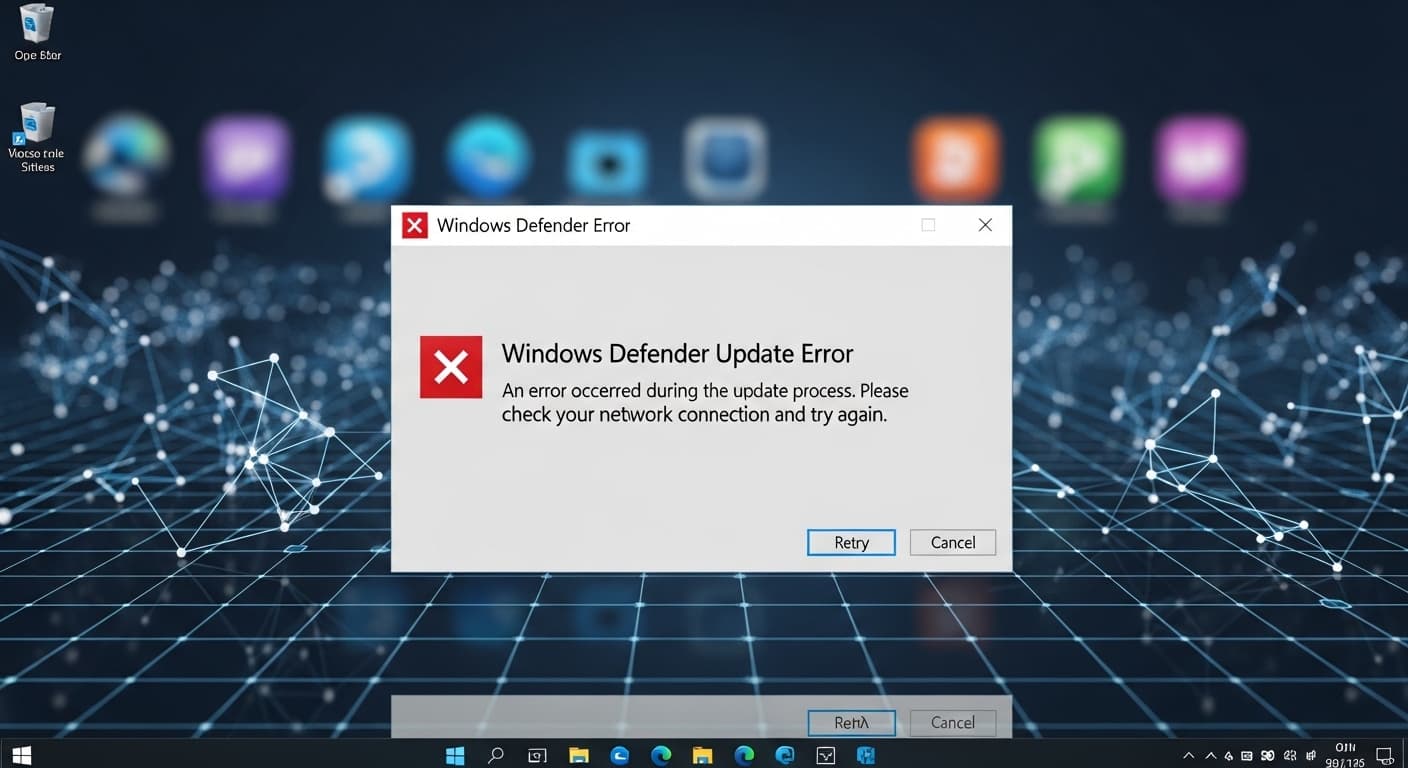
Windows Defender Update Error
Windows Defender Update Error – Quick Fix Guide
Quick Fix
Open Windows Security → Virus & threat protection → Check for updates. If it fails, restart the PC and try again.
What it Means
The Windows Defender Update Error means the antivirus engine can’t download or install its latest definition files. It stops protection from staying current and can expose the system to threats.
Possible Causes
- 1Network connectivity problems
- 2Windows Update service disabled
- 3Corrupted update files
- 4Third‑party antivirus blocking updates
- 5Outdated Windows version
- 6Group policy restrictions
How to Fix
Step-by-Step Solutions
- Run Windows Update Troubleshooter
Open Settings → Update & Security → Troubleshoot → Additional troubleshooters → Windows Update → Run the troubleshooter to fix common issues.
- Reset Windows Update components
Open an elevated PowerShell and execute commands to stop services, delete cache, and restart services.
Stop-Service wuauserv; Stop-Service bits; Remove-Item -Recurse -Force $env:windir\SoftwareDistribution\Download\*; Start-Service wuauserv; Start-Service bits - Clear local update cache
Delete the contents of the SoftwareDistribution folder to force fresh downloads.
del /f /q %windir%\SoftwareDistribution\Download\*.* - Check Windows Update service status
Make sure the Windows Update service is set to Automatic and running.
sc config wuauserv start= auto & net start wuauserv - Repair Windows system files
Run system file checker and DISM to fix corrupted system files that may block updates.
sfc /scannow & DISM /Online /Cleanup-Image /RestoreHealth - Force Defender update via PowerShell
Use the Update-MpSignature cmdlet to manually trigger a definition update.
Update-MpSignature
Commands You Can Try
Technical Details
Related Errors
Still stuck?
Pro tips
- Use the Microsoft Update Catalog to download the latest Defender definitions manually
- Check the Event Viewer under Windows Logs → Application for detailed error codes
- Run a network diagnostics test to ensure no firewall blocks HTTPS traffic
If the error persists after performing all troubleshooting steps, contact Microsoft Support or a qualified IT professional for deeper diagnostics.
If these solutions didn't help, try searching our database for similar issues.
Contact Support