
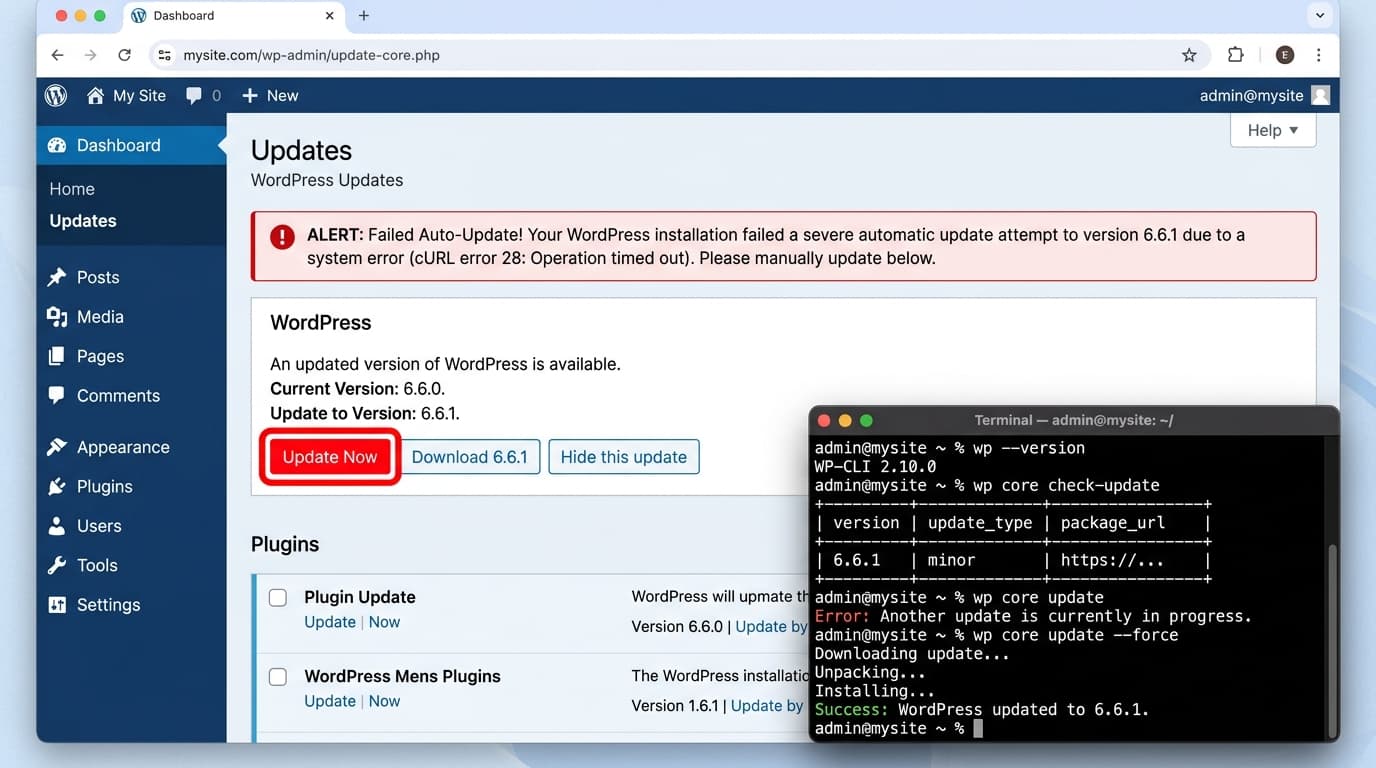
failed-auto-update
Error: Failed Auto-Update in WordPress
Quick Fix
1. Go to Dashboard → Updates and click "Update Now". 2. If it fails, clear browser cache and retry. 3. Check your hosting error logs for permission issues. 4. If still stuck, run the update via WP‑CLI.
What it Means
The "Failed Auto-Update" error appears when WordPress cannot complete a core, plugin, or theme update automatically. It usually indicates a problem with file permissions, network connectivity, or a corrupted update package.
Possible Causes
- 1Insufficient file permissions on wp-content or core folders
- 2Network timeout or blocked outbound connections
- 3Corrupted or incomplete update package
- 4Conflicting plugins or themes
- 5Disk space limits
- 6PHP version incompatibility
How to Fix
Step-by-Step Solutions
- Check File Permissions
WordPress needs write access to core files and the wp-content folder. Use an FTP client or SSH to set directories to 755 and files to 644. Incorrect permissions block the update process.
chmod -R 755 wp-content && find wp-content -type f -exec chmod 644 {} \; - Clear Browser Cache
Cached pages can show stale update information. Clear your browser cache or use incognito mode to force a fresh request to WordPress.
- Run WP‑CLI Update
WP‑CLI bypasses the dashboard and can provide clearer error output. Run the appropriate command to update core, plugins, or themes.
wp core update wp plugin update --all wp theme update --all - Check Server Logs
Review Apache/Nginx and PHP error logs for permission or timeout messages that explain why the update failed.
- Disable Conflicting Plugins
Some plugins can lock files during updates. Temporarily deactivate all plugins, attempt the update, then reactivate them one by one to identify the culprit.
- Verify Disk Space
WordPress requires temporary space to unpack updates. Ensure you have at least 50MB free on the server.
- Update PHP
Older PHP versions may not support newer WordPress releases. Upgrade to PHP 7.4 or higher.
Commands You Can Try
Technical Details
Related Errors
Still stuck?
Pro tips
- Use a staging environment to test updates before applying them on live sites.
- Enable automatic updates for minor core releases to reduce manual intervention.
- Keep a recent backup before performing major updates.
Contact your hosting provider if you suspect server‑level issues like firewall blocks or insufficient resources. Reach out to WordPress support if the problem persists after following all troubleshooting steps.
If these solutions didn't help, try searching our database for similar issues.
Contact Support