
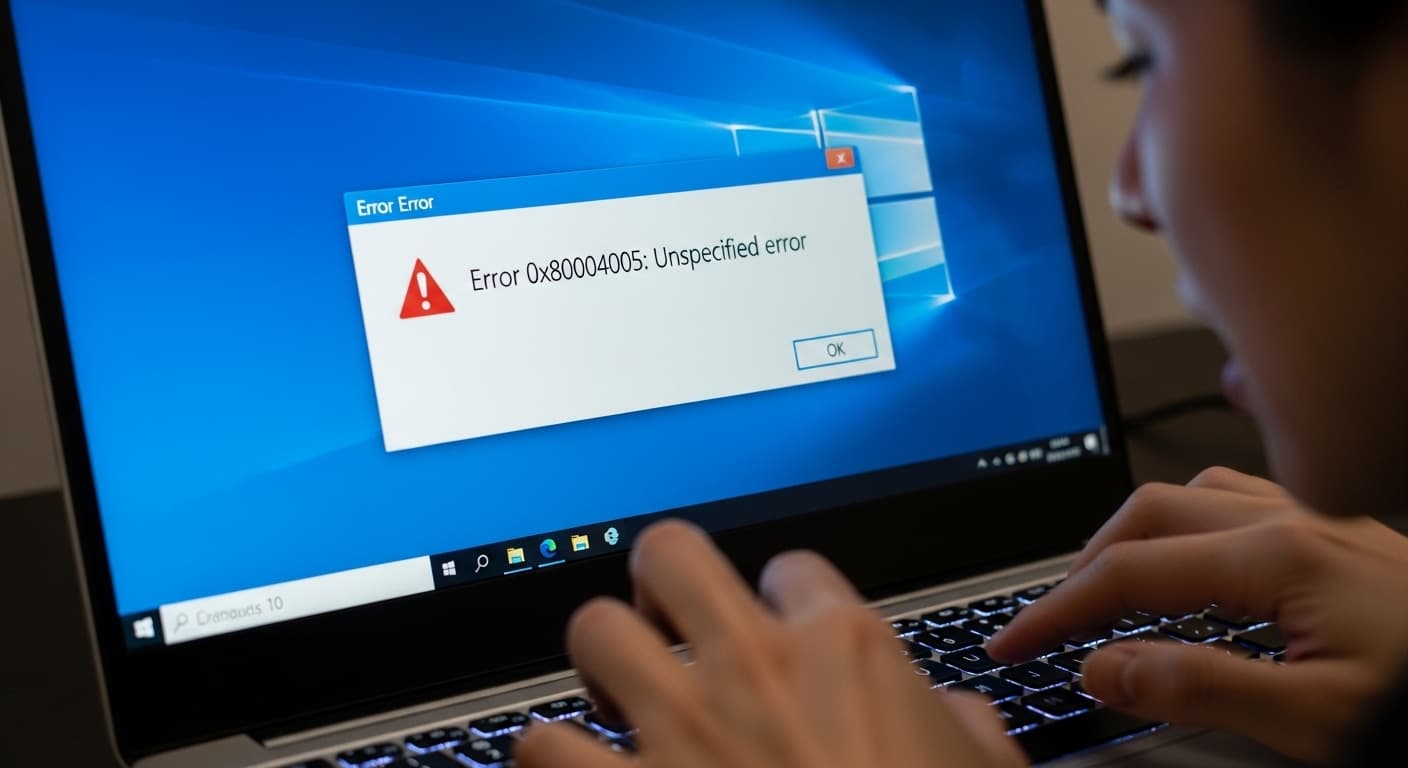
0x80004005
Error 0x80004005: How to Fix Windows 0x80004005
Quick Fix
Run the Windows Troubleshooter, reset the affected component, and reinstall the program. If that fails, use DISM and SFC to repair system files.
What it Means
The 0x80004005 code is a generic Windows error that signals an unspecified failure. It can appear during updates, file access, or software installation and usually means a missing or corrupted system file, permission issue, or registry problem.
Possible Causes
- 1Corrupted system files
- 2Missing or damaged Windows updates
- 3Insufficient user permissions
- 4Registry corruption
- 5Third‑party software conflicts
How to Fix
Step-by-Step Solutions
- Run DISM
Open an elevated Command Prompt and execute DISM to repair the Windows image, which fixes missing or corrupted files that can cause 0x80004005.
DISM /Online /Cleanup-Image /RestoreHealth - Run SFC
After DISM, run System File Checker to scan all protected system files and replace any that are corrupted.
sfc /scannow - Reset Windows Update
Stop the Windows Update service, delete the SoftwareDistribution folder, and restart the service to clear update corruption.
net stop wuauserv && rd /s /q %windir%\SoftwareDistribution && net start wuauserv - Check Permissions
Ensure the user account has administrative rights and that the folder or file is not blocked by group policies.
- Reinstall Application
Uninstall the software that triggers the error, delete remaining files, and reinstall the latest version from a trusted source.
Commands You Can Try
Technical Details
Related Errors
Still stuck?
Pro tips
- Create a System Restore point before making changes
- Backup important data to external storage
- Use the Windows Update Troubleshooter for automatic fixes
If the error persists after running DISM, SFC, resetting updates, and reinstalling affected programs, contact Microsoft Support or a qualified technician.
If these solutions didn't help, try searching our database for similar issues.
Contact Support