
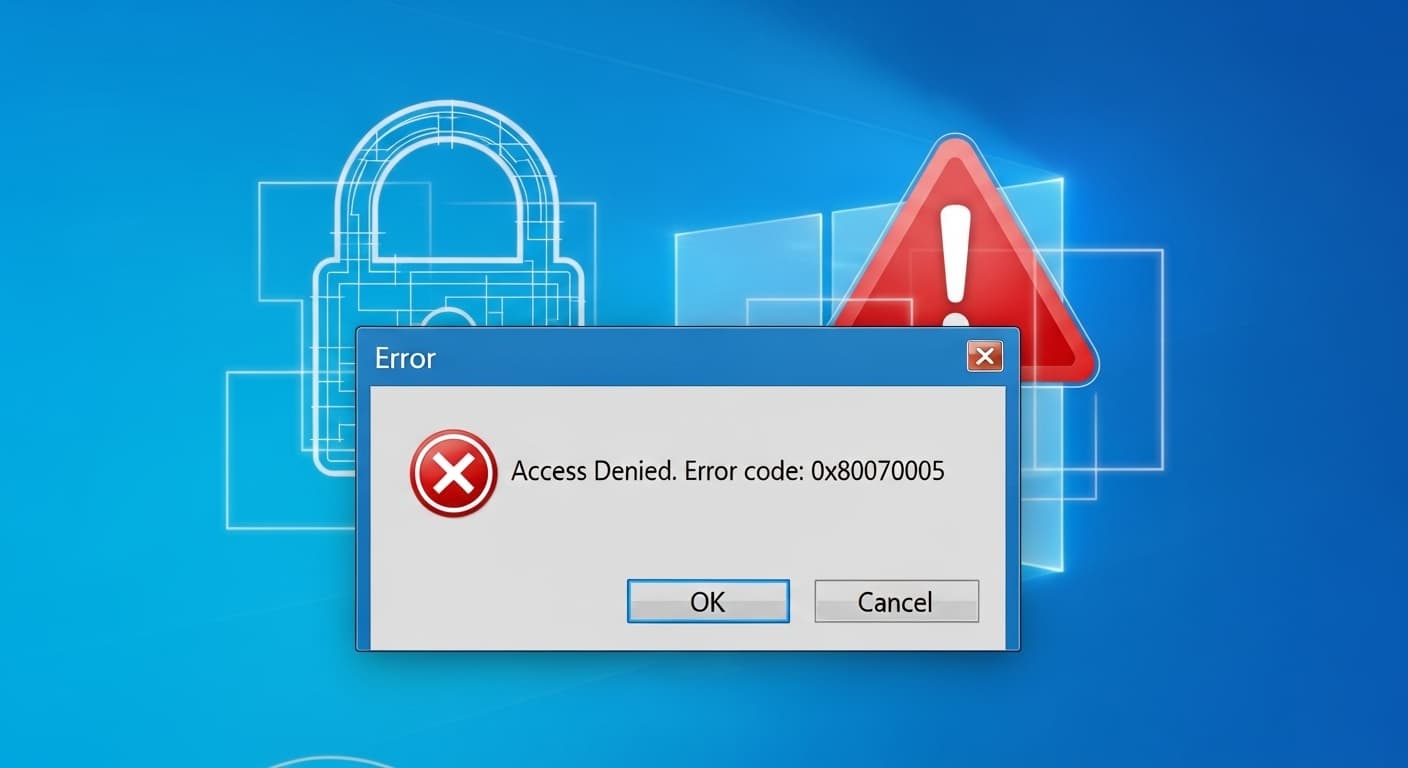
0x80070005
How to Fix Windows 0x80070005
Quick Fix
Run the program as administrator, reset the folder permissions, or run the DISM command to repair system files.
What it Means
The 0x80070005 error means Windows denied access to a file, folder, or registry key due to insufficient permissions or policy restrictions. It often appears when installing software, updating drivers, or accessing system resources.
Possible Causes
- 1Insufficient user permissions
- 2Locked or protected files
- 3Group Policy restrictions
- 4Antivirus or security software blocking access
- 5Corrupted system files
How to Fix
Step-by-Step Solutions
- Run as Administrator
Right‑click the application and choose "Run as administrator" to grant elevated privileges and bypass basic permission checks.
- Reset Folder Permissions
Use icacls to grant full control to the Users group on the folder causing the error. This restores access rights that may have been removed or corrupted.
icacls "C:\Program Files\App" /grant "Users":(OI)(CI)F /T - Repair System Files
Open an elevated Command Prompt and run DISM to scan and fix Windows image corruption that can trigger access denied errors.
DISM /Online /Cleanup-Image /RestoreHealth - Check Group Policy
Open gpedit.msc and navigate to Computer Configuration > Administrative Templates > System. Ensure policies like "Prevent access to drives" are not enabled.
- Disable Antivirus Temporarily
Some security suites block file access. Temporarily disable them, retry the action, then re‑enable protection.
Commands You Can Try
Technical Details
Related Errors
Still stuck?
Pro tips
- Create a system restore point before changing permissions
- Use PowerShell's Get-Acl and Set-Acl for advanced permission edits
- Keep your Windows updated to avoid known bugs that trigger 0x80070005
If the error persists after applying all fixes, contact Microsoft Support or a qualified IT professional for deeper diagnostics.
If these solutions didn't help, try searching our database for similar issues.
Contact Support