
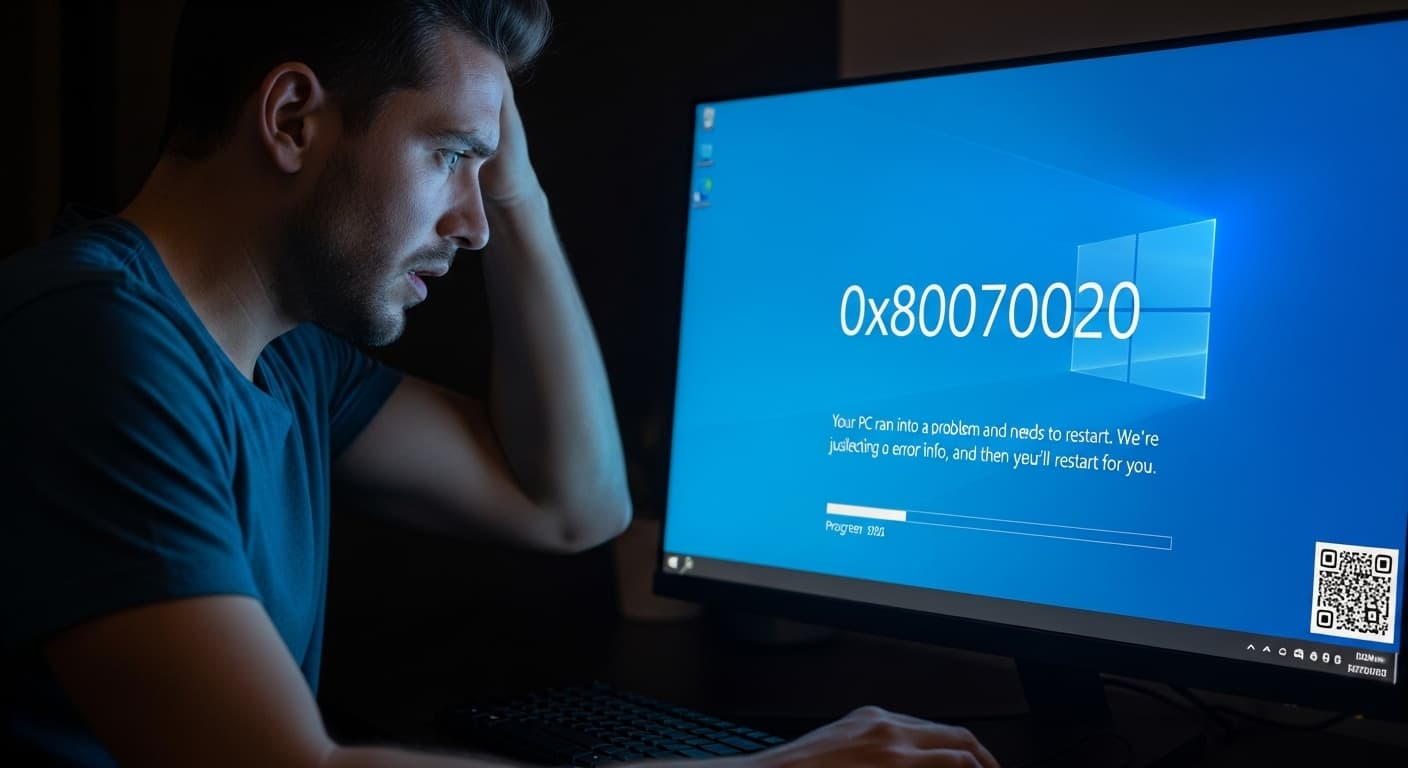
0x80070020
Windows 0x80070020 Error – How to Fix
Quick Fix
Close all programs, restart your PC, then run the Windows Update troubleshooter. If the error persists, open an elevated Command Prompt and run DISM and SFC commands to repair system files.
What it Means
The 0x80070020 error means Windows cannot access a file or registry key because it is locked by another process. It commonly appears during Windows Update, driver installs, or when a background service holds a file.
Possible Causes
- 1File or registry lock by another process
- 2Background services like Windows Update or antivirus
- 3Pending updates in SoftwareDistribution folder
- 4Corrupted system files
- 5Misconfigured permissions
How to Fix
Step-by-Step Solutions
- Identify the locked file
Open Process Explorer (procexp.exe) and use Find > Find Handle or DLL to locate the file name reported in the error. Close the application or service using it.
- Restart the computer
A simple reboot clears most file locks and stops background services that might be holding the file.
- Run DISM repair
DISM fixes Windows image corruption that can cause file locks.
DISM /Online /Cleanup-Image /RestoreHealth - Run SFC scan
SFC checks and replaces corrupted system files that may be locked.
sfc /scannow - Stop Windows Update service
Temporarily stop the service to free the SoftwareDistribution folder.
net stop wuauserv - Delete SoftwareDistribution folder
Clear pending updates that might be locked.
del /s /q %windir%\SoftwareDistribution\* - Restart Windows Update service
Restart the service to allow updates to resume.
net start wuauserv - Reboot the computer
Apply all changes and ensure no locks remain.
Commands You Can Try
Technical Details
Related Errors
Still stuck?
Pro tips
- Use PowerShell with Start-Process -Verb RunAs to run commands with admin rights
- Schedule the DISM and SFC scans during off‑peak hours to avoid interrupting work
- Keep your antivirus updated and perform a full scan after fixing the error
If the error continues after all steps, or if your system shows instability or data loss, contact Microsoft Support or a professional technician for deeper diagnostics.
If these solutions didn't help, try searching our database for similar issues.
Contact Support