
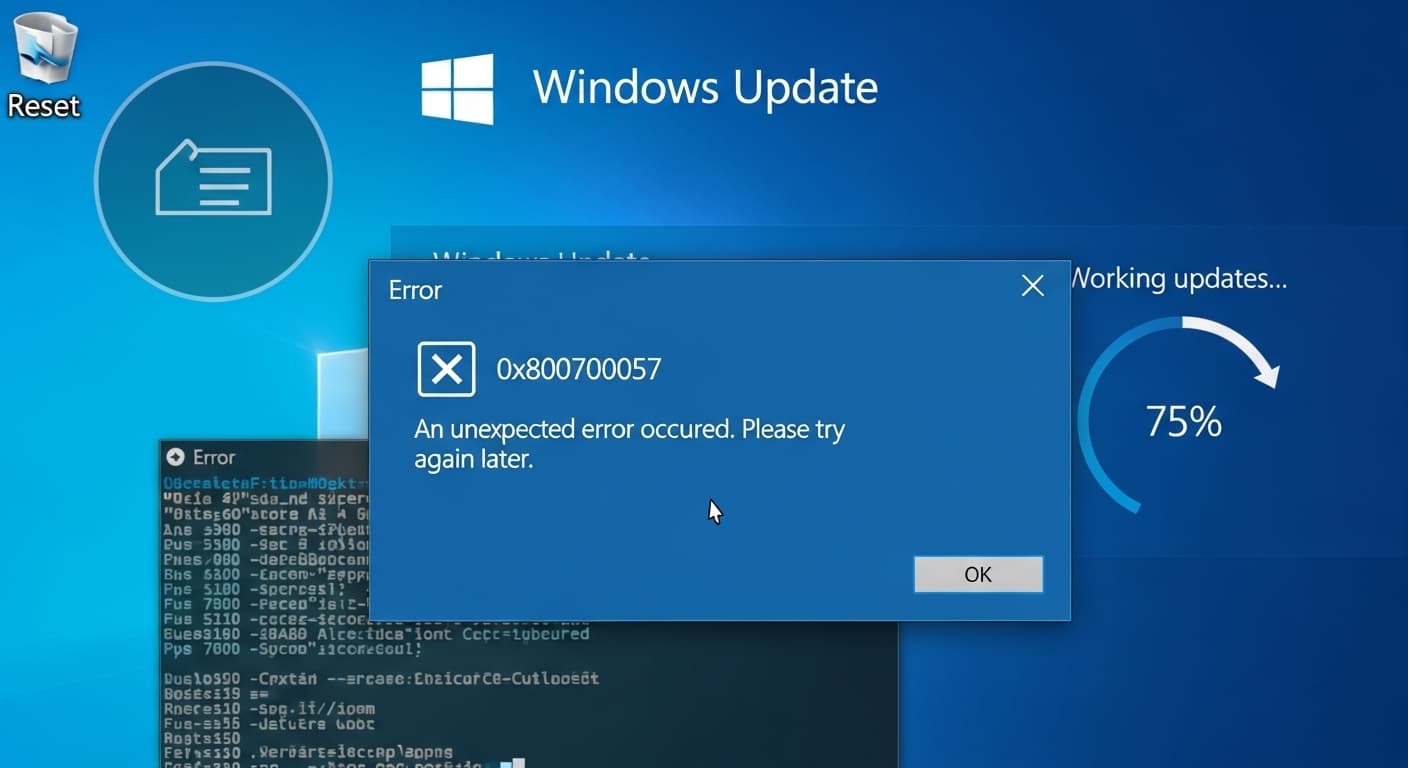
0x80070057
Error 0x80070057: How to Fix Windows 0x80070057
Quick Fix
Restart your computer, run Windows Update again, and if the 0x80070057 error persists, run the Windows Update Troubleshooter from Settings > Update & Security > Troubleshoot. This often clears the error quickly.
What it Means
The 0x80070057 error appears when Windows Update or a system installer can’t find a required file or registry entry. It signals that the update package is corrupted, missing, or the system cannot access the needed data.
Possible Causes
- 1Corrupted Windows Update files
- 2Damaged registry entries
- 3Insufficient disk space
- 4Third‑party antivirus blocking files
- 5Incomplete previous updates
How to Fix
Step-by-Step Solutions
- Run Windows Update Troubleshooter
Open Settings > Update & Security > Troubleshoot > Additional troubleshooters > Windows Update, then run the tool to detect and fix common problems.
- Delete SoftwareDistribution Folder
Navigate to C:\Windows\SoftwareDistribution, delete all contents, then restart the Windows Update service to force a fresh download.
rd /s /q C:\Windows\SoftwareDistribution - Reset Update Components
Open an elevated command prompt and execute a series of commands to stop services, rename folders, and restart services, restoring default update settings.
net stop wuauserv & net stop cryptSvc & net stop bits & net stop msiserver & ren C:\Windows\SoftwareDistribution SoftwareDistribution.old & ren C:\Windows\System32\catroot2 catroot2.old & net start wuauserv & net start cryptSvc & net start bits & net start msiserver - Repair System Image with DISM
Run DISM to scan and repair the Windows image, which fixes underlying corruption that may trigger 0x80070057.
DISM /Online /Cleanup-Image /RestoreHealth - Check Disk Health
Run chkdsk to find and repair bad sectors that can cause file access errors during updates.
chkdsk /f /r - Disable Antivirus Temporarily
Turn off real‑time protection to ensure the updater can write files without interference, then re‑enable after the update.
Commands You Can Try
Technical Details
Related Errors
Still stuck?
Pro tips
- Always back up important data before making system changes.
- Use a clean boot to rule out third‑party software conflicts.
- Keep your system drivers up to date to avoid compatibility issues.
If the 0x80070057 error persists after following all troubleshooting steps, or if you see additional error codes, contact Microsoft Support or a qualified technician for deeper diagnostics.
If these solutions didn't help, try searching our database for similar issues.
Contact Support