
0x80070422
Error 0x80070422: Windows Service Not Running
Quick Fix
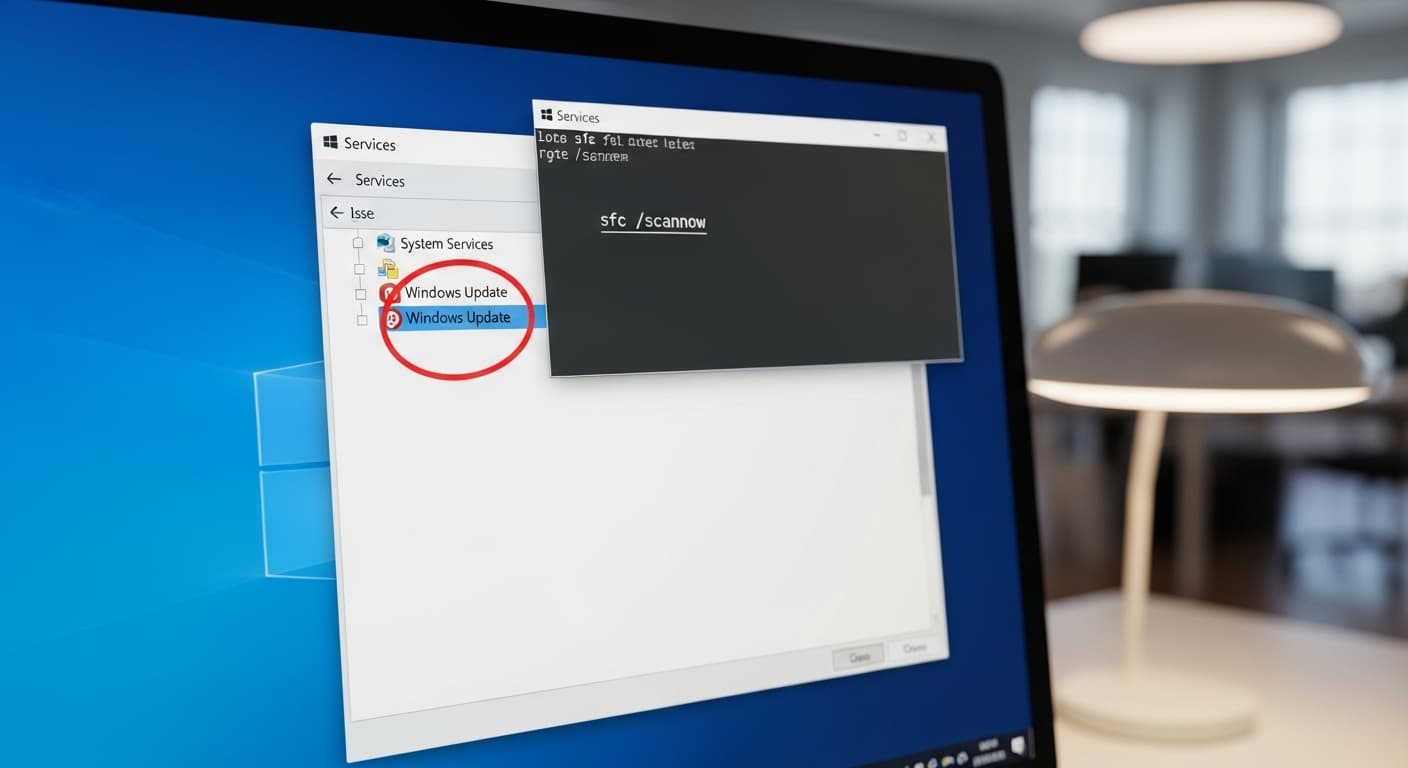
Open Services (Win+R, type services.msc). Find the service causing the error (e.g., Windows Update, Background Intelligent Transfer Service). Right‑click, choose Start, then set Startup type to Automatic. Reboot if needed.
What it Means
The 0x80070422 error appears when a Windows service that a program needs is stopped or disabled. It stops updates, network access, or other features that rely on that service.
Possible Causes
- 1Service disabled or stopped
- 2Corrupted service configuration
- 3Group policy blocking service start
- 4Malware disabling services
- 5Registry errors
How to Fix
Step-by-Step Solutions
- Open Services
Press Win+R, type services.msc, and press Enter to view all services.
- Identify the service
Look for services like Windows Update (wuauserv) or Background Intelligent Transfer Service (bits).
- Start the service
Right‑click the service, select Start. If it fails, check the Error tab for details.
- Set startup type
Right‑click, choose Properties, set Startup type to Automatic, then Apply.
- Run SFC and DISM
Open an elevated Command Prompt and run: sfc /scannow Then run: DISM /Online /Cleanup-Image /RestoreHealth
sfc /scannow DISM /Online /Cleanup-Image /RestoreHealth - Reset Windows Update
Stop services, delete SoftwareDistribution and Catroot2 folders, then restart services: net stop wuauserv net stop bits rmdir /s /q C:\Windows\SoftwareDistribution rmdir /s /q C:\Windows\System32\catroot2 net start wuauserv net start bits
net stop wuauserv net stop bits rmdir /s /q C:\Windows\SoftwareDistribution rmdir /s /q C:\Windows\System32\catroot2 net start wuauserv net start bits - Check Group Policy
Run gpedit.msc, navigate to Computer Configuration > Administrative Templates > System > Services. Ensure no policy disables the service.
- Run Malware Scan
Use Windows Defender or a reputable third‑party scanner to detect malicious software that might block services.
Start Windows Security > Virus & threat protection > Quick scan
Commands You Can Try
Technical Details
Related Errors
Still stuck?
Pro tips
- Use PowerShell to start services: Start-Service -Name wuauserv
- Create a system restore point before making changes
- Check Event Viewer for detailed error logs
- Use the Windows Update Troubleshooter
If the service still won’t start after following all steps, or you see persistent errors in Event Viewer, contact Microsoft Support or a qualified technician.
If these solutions didn't help, try searching our database for similar issues.
Contact Support