
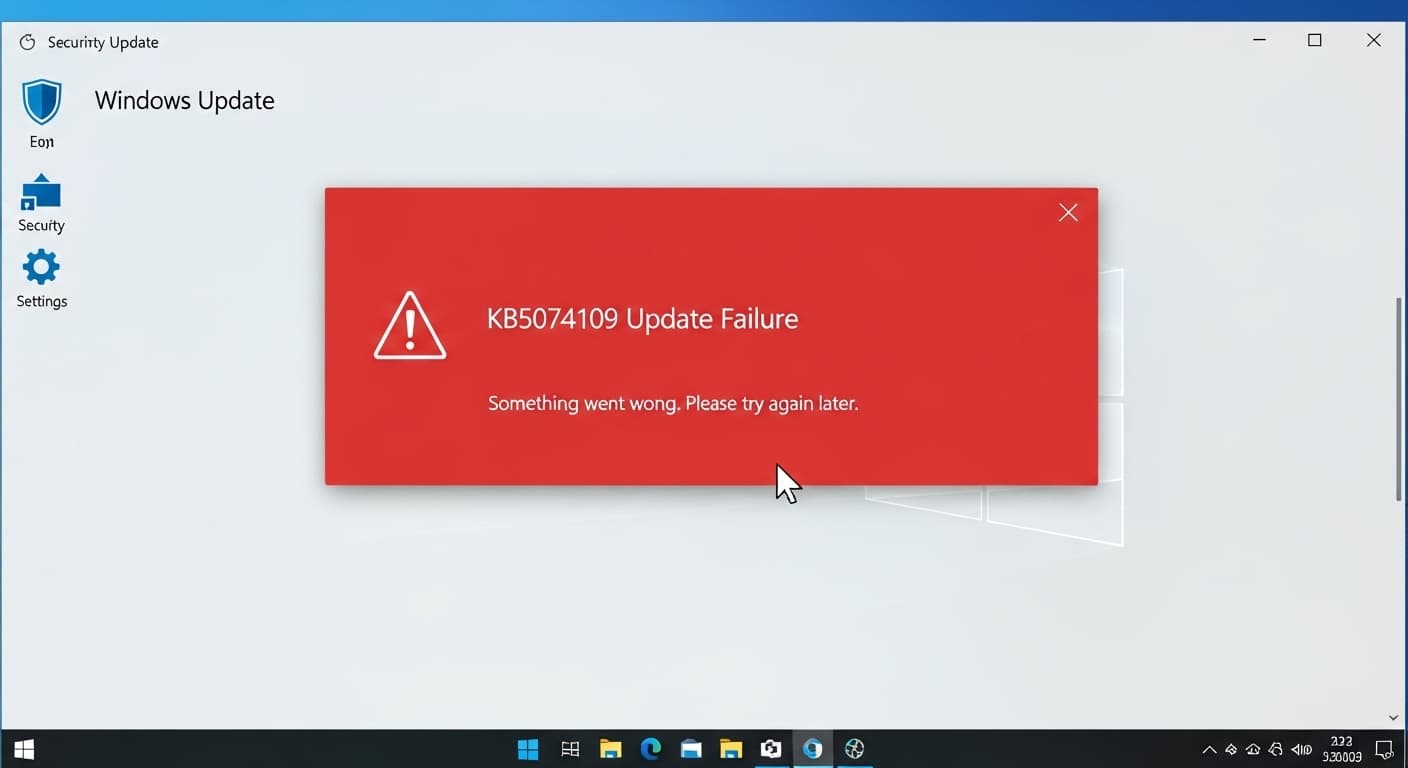
KB5074109
KB5074109 Update Failure: Windows Update Error
Quick Fix
1. Open Settings → Update & Security → Troubleshoot → Windows Update and run the troubleshooter. 2. Restart the PC. 3. If it still fails, run the Update Assistant or reset the Windows Update components.
What it Means
The KB5074109 Update Failure means the Windows Update service was unable to install the KB5074109 patch. It usually appears as a red error in the Update history and stops the patch from completing.
Possible Causes
- 1Corrupted Windows Update files
- 2Missing or damaged system files
- 3Network or proxy blocking the download
- 4Previous failed update attempts
- 5Registry corruption
- 6Third‑party antivirus or firewall interference
How to Fix
Step-by-Step Solutions
- Run the Windows Update Troubleshooter
Open Settings → Update & Security → Troubleshoot → Windows Update. The built‑in tool detects and fixes common problems.
- Delete the SoftwareDistribution folder
This folder stores temporary update files. Deleting it forces Windows to re‑download everything, clearing corrupt data.
rmdir /s /q %windir%\SoftwareDistribution - Reset Windows Update components
Restart the Update services and reset their state to default. This often resolves stuck updates.
net stop wuauserv & net stop bits & net stop cryptsvc & net stop msiserver & del /f /q %windir%\SoftwareDistribution\* & del /f /q %windir%\System32\catroot2\* & net start wuauserv & net start bits & net start cryptsvc & net start msiserver - Run SFC and DISM
Check for and repair corrupted system files that may block updates.
sfc /scannow & DISM /Online /Cleanup-Image /RestoreHealth - Use Windows Update Assistant
Download the assistant from Microsoft’s site to manually install the latest Windows build, which includes the KB5074109 patch.
- Disable third‑party security temporarily
Some antivirus or firewall settings block update downloads. Disable them for a few minutes and retry.
Commands You Can Try
Technical Details
Related Errors
Still stuck?
Pro tips
- Keep Windows Update enabled to avoid missing critical patches
- Use a wired connection for large downloads
- Create a system restore point before major updates
- Check Microsoft’s support page for known issues with KB5074109
If the update still fails after all steps, or you see persistent errors like 0x80070002, contact Microsoft Support or your IT department. Also reach out if the system becomes unstable or data is missing.
If these solutions didn't help, try searching our database for similar issues.
Contact Support